2BizBox® Manual |
Go back to 6.0 Main |
Imagine you are a warehouse manager at an electronics factory. Today, the workshop takes a batch of capacitors. One week later, the production line finds that all of these capacitors are defective.
You need to know immediately:
·Which supplier delivered this batch?
·When was it received?
·How many capacitors from the same batch are still in the warehouse? On which shelf?
Without Part Tracking, you would have to sift through piles of paper records — or worse, have no way to trace them at all.
Part Tracking is the tool that helps you manage this information. It uses "batches" to record the following for each lot of parts:
What you care about |
How the system records it |
Which batch is this? |
Tracking Number (supplier batch number, production |
When was it received? |
Receipt Date |
Where is it stored? |
Location |
When does it expire? |
Expiration Date (for parts with shelf life, such as glue, |
How many are left in this |
Tracking Quantity |
When was the last time it was |
Last Issue Date (used to determine slow-moving |
With Part Tracking, you can achieve:
·Quality traceability: quickly pinpoint the specific batch and supplier when issues arise.
·Shelf-life management: use older batches first to avoid expiration waste.
·Slow-moving material cleanup: identify inventory that has not moved for a long time to reduce capital tie-up.
·FIFO (First-In, First-Out): the system automatically allocates quantities starting from the earliest receipt date, helping you use older batches first.
In one sentence: Part Tracking takes you from "knowing how many parts are in the warehouse" to " knowing when each batch arrived, where it is stored, when it expires, and how many are left"
Before you start, let us go over a few key concepts. You do not need to memorize them all at once, you will become familiar with them as you use the system.
Tracking Number
The tracking number is the "name" you assign to each batch of parts. It should ensure that different batches of the same part can be distinguished.
Common naming methods:
Naming Method |
Example | Use Case |
Supplier batch number |
SANYO-2025-03 |
Supplier provides a batch number; |
| Receipt date | 20250315 | Only one receipt of the same part |
Purchase order number |
PO-2025-0123 | Manage batches by purchase order |
| Internal code | B001, B002 | Simple scenarios with self-assigned numbers |
The same tracking number can be placed in different locations or received on different dates. The system distinguishes records by "Tracking Number + Location + Receipt Date".
Location
Location is the specific storage position of a part in the warehouse, e.g., A-01-03 means Zone A, Row 1, Level 3. Each tracked batch must be assigned to a location.
Receipt Date
The date the part was received into the warehouse. If you received a batch of capacitors on March 15, 2025, then the receipt date is 2025-03-15.
Expiration Date
The date on which the part expires. This applies to products with a shelf life (e.g., chemicals, glue, solder paste). The system calculates it automatically based on company settings, and you can also adjust it manually.
Supplier
The batch number provided by the supplier, used for reconciliation or quality traceability, e.g., the batch number LOT-88492 on the supplier’s delivery note.
Stagnant Days
The number of days since the part was last issued. If it has never been issued, it is counted from the receipt date.
Example: A batch of resistors was received in January 2024, last issued in March 2024, and today is July 2025. The Stagnant days = from March 2024 to today ≈ 480 days.
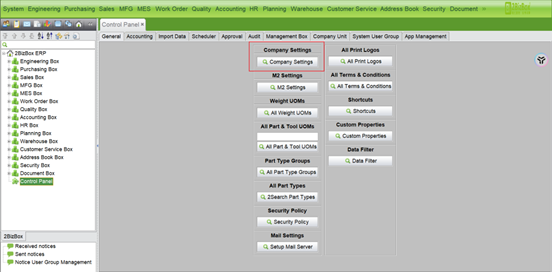
Path: Control Panel → Company Settings
This must be done by a system administrator.
1. Go to the Control Panel and click "Company Settings".
|
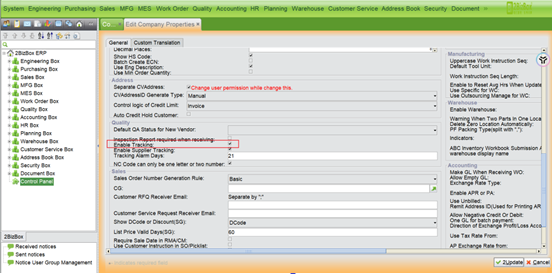
2. Find the "Enable Tracking" option and check it.
 |
2. Click "Save".
Once enabled, the system will require tracking information for all receipt and issue operations involving tracked parts. If you are just testing, you can leave it disabled until your data is ready.
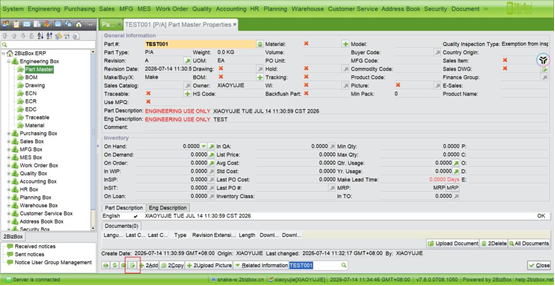
Path: Engineering → Part Master → Edit Part
1.The part’s expiration date is determined by the "Tracking Expiration Period (days)" setting, maintained in the part master data.
2.Go to the Engineering module, find the part you want to track, and click Edit.
 |
3. In the part edit page, find the "Tracking" switch. After turning it on, the "Tracking Valid Days" input field will appear.
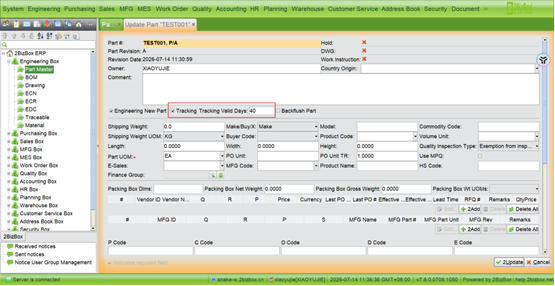 |
4.Enter the number of days, e.g., 40. When this part is received, the expiration date will be automatically calculated as Receipt Date + 40 days.
5.Save the part.
If a part has no shelf-life requirement, you can leave the "Expiration Date" field blank upon receipt, and the system will not perform expiration checks for that batch.
Path: Control Panel → Company Settings
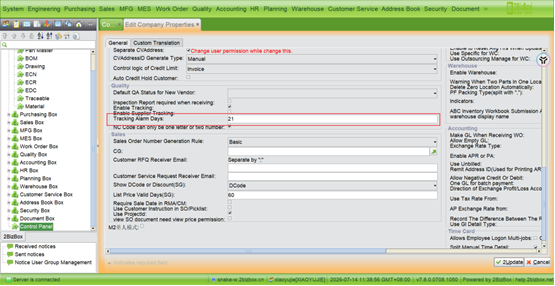
The "Tracking Alarm Days" setting controls the threshold for approaching-expiry alerts in the tracking list. For example, if set to 21 days, batches with 21 or fewer days until expiration will appear in orange text.
1. Go to the Control Panel and click "Company Settings".
2. Find "Tracking Alarm Days" and enter the number.
 |
3. Save the setting.
(Initialization)
Path: Quality Box→ Tracking → Init Tracking
If you were not using tracking before and already have existing inventory, you need to add tracking information for that stock. This process is called "Initialize Tracking".
Steps
1. Go to the Quality module, click "Tracking", then click "Init Tracking"
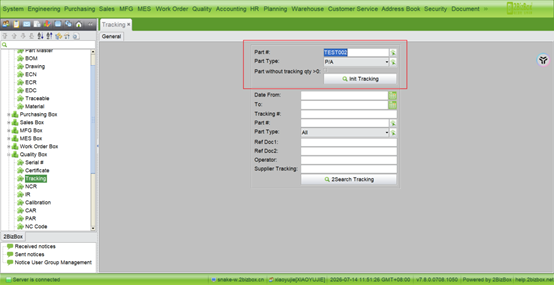 |
2. Enter a part number or part type in the search box and click Search. The system will list all inventory items that do not yet have tracking records.
3. Select a record and fill in the following:
- Tracking Number: assign a batch name for this inventory.
- Location: select the actual storage location.
- Receive Date: select the actual receipt date for this stock.
- Due Date: if applicable, fill in the expiry date.
- Quantity: enter the actual quantity of this batch at this location.
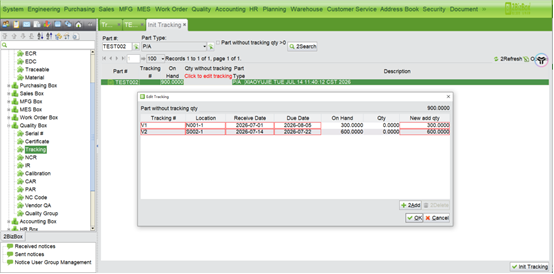 |
The system validates that the total tracked quantity does not exceed the inventory quantity, and that the tracked quantity per location does not exceed the location inventory. You do not have to complete all entries at once — you can partially backfill and continue later.
Whether it is a purchase order receipt, work order receipt, return receipt, or transfer receipt, if the part is tracked, you must enter tracking information upon receipt.
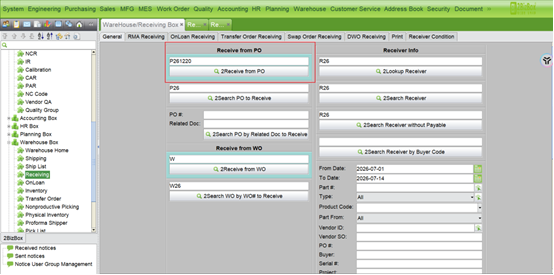
Path: Warehouse → Receiving → Select the appropriate receipt type
Steps (using purchase order receipt as an example)
1.Go to the Warehouse module and click the relevant receipt (e.g., Purchase Order Receipt).
 |
2.In the receipt line, enter the location.
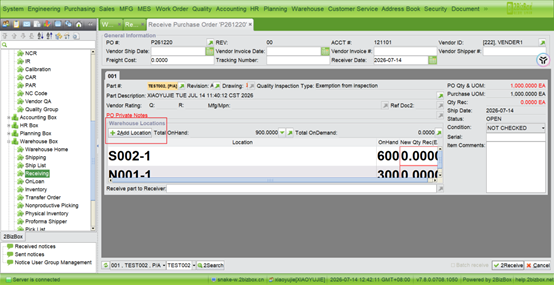 |
3. Click the "New Qty Rec" button for that line to open the tracking edit window.
4. In the tracking edit window, fill in:
| Field | Description |
| Tracking Number | Enter the supplier batch number or a custom code |
| Supplier Tracking Number | (Optional) If enabled, enter the batch number provided by the supplier |
| Arrival Date | Defaults to today, can be modified |
| Expiration Date | Automatically calculated based on the expiration period, can be manually adjusted |
| Quantity | The quantity for this batch in this receipt |
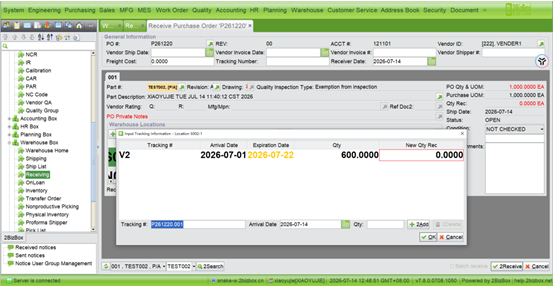 |
5. Confirm the receipt quantity, click "OK", then save the receipt.
Tip: If the same part is received in multiple batches in one receipt, you can add multiple rows in the tracking window with different tracking numbers and quantities.
When issuing (outbound) material, you need to select which tracked batch(es) to deduct
from.
Path: Warehouse → Shipping → Select the appropriate issue type
Steps (using sales order issue as an example)
1. Go to the Warehouse module and select the relevant issue document.
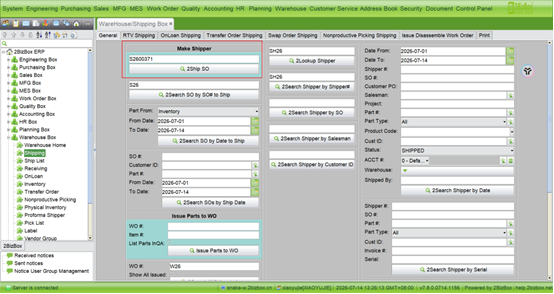 |
2. In the issue line, the system lists all available tracked batches for that part, showing:
- Tracking Number
- Location
- Arrival Date
- On Hand
- Expiration Date
If a batch is expired, the row is shown in red; if it is approaching expiry, it is shown in orange
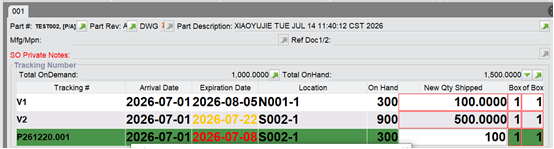 |
3. Select the batch(es) to use and enter the issue quantity (cannot exceed the available quantity of that batch).
4. Click "OK". The system will bring the tracking information into the issue document. After saving the issue document:
- The corresponding batch quantity is deducted.
- The "Last Issue Date" for that batch is updated to today.
About FIFO (First-In, First-Out)
The system automatically allocates issue quantities starting from the earliest receipt date, helping you follow FIFO. If you need to manually adjust the allocation, you can modify the quantities for each batch in the tracking selection window.
If You Select an Expired Batch
When you select an expired batch, the system displays a confirmation pop-up:
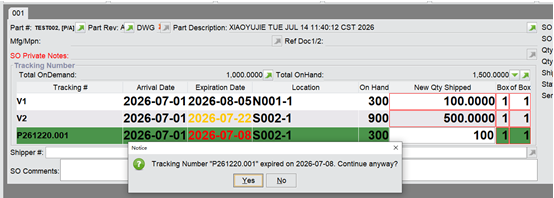 |
- Click "OK" to confirm using the expired batch.
- Click "Cancel" to go back and choose an unexpired batch instead.
The following operations also involve synchronized updates to tracking records, handled similarly to receipts and issues:
Operation Type |
Effect on Tracking |
Path |
Inventory Adjustment |
Adjust tracking batch quantities (increase/decrease) |
Warehouse → Inventory |
Financial Inventory |
Synchronize tracking batch quantities |
Finance → Inventory Management |
Transfer |
Move tracking batches from one location to another |
Warehouse → Transfer Order |
Return Receipt |
Equivalent to receipt; create/supplement tracking batches |
Warehouse → Return Receipt |
Return Issue |
Equivalent to issue; deduct tracking batches |
Warehouse → Return Issue |
Exchange |
Return + Receipt on both sides |
Warehouse → Exchange Receipt/Issue |
Borrow |
Similar to receipt/issue; synchronize tracking |
Warehouse → Borrow Receipt/Issue |
As long as the part is tracked, these operations require entering or selecting tracking information, following the same logic as receipts and issues.
Path: Quality → Tracking → Searsh Tracking
You can use the tracking query function to view the status of all batches at any time.
Steps
1. Go to the Quality module, click "Tracking", then click "Search Tracking"
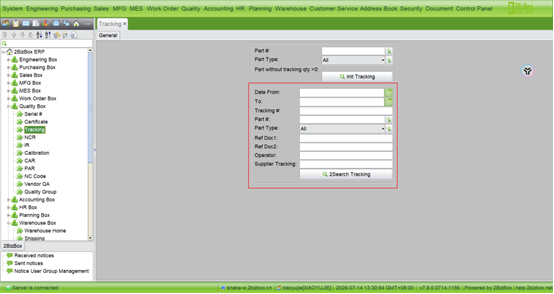 |
2. Enter search criteria (any or combination):
- Part Number
- Tracking Number
- Supplier Tracking
- Related Document
- Expiration Date Range
3. Click Search to view results.
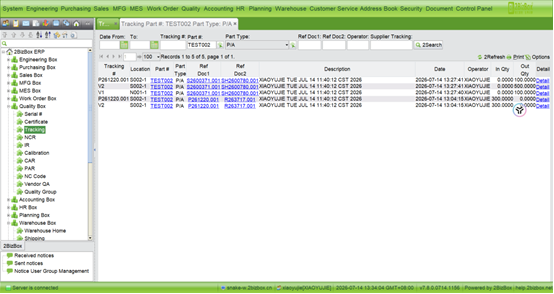 |
Each row includes: Part Number, Part Type, Location, Tracking Number, Date, Expiration Date, In Quantity, Out Quantity.
The system alerts you about approaching or already-expired batches in two places:
(1) Today‘s Tasks
Located on the system homepage or in the sidebar “Today” panel.
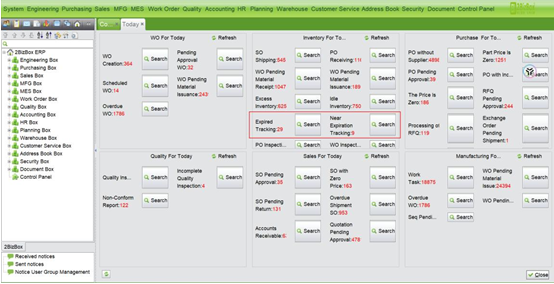 |
- Expired Tracking: shows the number of expired batches. Click to view details.
- Near Expiration Tracking: shows the number of batches nearing expiry. Click to view details.
(2) Color Coding in Tracking Query List
In the tracking query list, different batch statuses are indicated by colors:
| Color | Meaning |
Red text |
Expired (current date > expiration date) |
Orange text |
Approaching expiry (within alert days of expiration) |
Black text |
Normal |
As mentioned in Section 4.2, here is a summary of possible reminders when issuing:
| Alert Type | Trigger Condition | Action |
Expiration Confirmation |
The selected batch is expired |
Confirm to use expired batch, or cancel and choose another |
These alerts help prevent mistakes but do not force-block the issue.
Slow-moving material refers to stock that has not been issued for a long time. Such parts occupy warehouse space and tie up capital without generating value.
The system determines this using “Slow-Moving Days”: the number of days since the last issue. The higher the number, the more “stale” the material.
Example: A batch of screws received in 2023 and never issued since may have slow moving days exceeding 700. Such parts should be prioritized for action — return to supplier, scrap, discount sale, or use in new orders.
Path: Warehouse → Inventory → Search Stagnant Tracking
1.Go to the Warehouse module, click “Inventory”, then click “Search Stagnant Tracking"
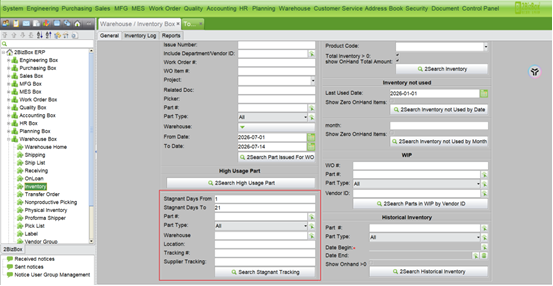 |
2.Enter search criteria:
3.Click Search to view results.
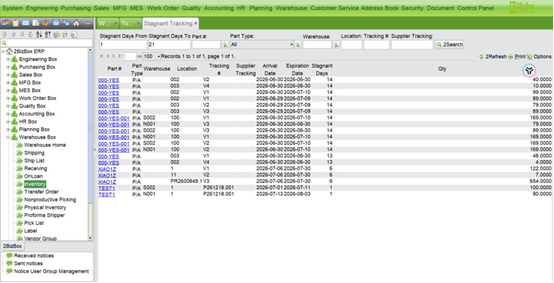 |
Results display: Part Number, Part Type, Warehouse, Location, Tracking Number, Supplier Tracking Number,Arrival Date, Stagnant Days, Quantity.
After identifying slow-moving material, you can take action based on your company’s inventory strategy:
Action |
Applicable Scenario |
Prioritize consumption |
Use slow-moving stock first when new orders or work orders are short of material |
Return to supplier |
When a return agreement exists with the supplier |
Scrap |
Parts are expired or unusable |
Discount sale |
Parts are still usable; sell quickly via promotion |
Transfer to another warehouse |
When another warehouse has demand |
It is recommended to run a slow-moving query regularly (e.g., monthly) as part of a routine inventory cleanup process.
Frequently Asked Questions (FAQ)
Q1: I no longer want to use tracking for a part. How do I turn it off?
Tracking is currently enabled/disabled globally. If you no longer need tracking for a part, it is recommended to clear all tracked inventory for that part (via issue or inventory adjustment) before considering disabling the feature.
Q2: What happens to existing tracking records if I disable global tracking?
When you disable global tracking, the system will prompt you that tracking records will be cleared. Confirm before proceeding. Ensure all tracking dependent transactions have been handled before disabling.
Q3: What if I enter a duplicate tracking number?
If you enter the same combination of “Tracking Number + Location + Receipt Date” for the same part, the system will reject it with a duplicate warning. You need to modify one of the fields — e.g., use a different tracking number, different location, or different receipt date.
Q4: What does “Insufficient tracking quantity” mean upon issue?
It means the available quantity of the selected batch(es) is less than the issue quantity. Go back to the tracking selection window, select more batches to cover the total quantity, or reduce the issue quantity.
Q5: What if historical data is missing receipt date/location and causes errors?
This indicates incomplete old data. Go to Quality → Tracking → Initialize Tracking, find the relevant part, and complete the missing receipt date, location, and other information. After saving, normal operations can resume.
Q6: Can I correct an incorrectly entered expiration date?
Yes. Find the batch in Tracking Query, click Edit, modify the expiration date, and save. The change will be recorded in the tracking log for audit purposes.
Q7: Is there a standard for naming tracking numbers?
There is no mandatory standard, but it is advisable to establish a consistent naming rule for easy identification and management. Common practices:
- Use the supplier batch number for easy reconciliation.
- Use “date + serial number”, e.g., 20250315-001.
- Use the purchase order number to trace procurement sources.
Q8: In a multi-warehouse scenario, initialization tells me “other warehouse data incomplete.” What should I do?
Initialize Tracking validates tracking data for the part across all warehouses. If other warehouses also have incomplete data, you need to complete them warehouse by warehouse. The system will indicate which warehouse and which part lack information.